
Answers from control operators
These responses mirror our internal runbooks so you get the same guidance our support desk delivers.
Everything you need to know about setup, billing, agents, overlays, and troubleshooting. Can't find your answer? Email us at [email protected].
Most streamers are live with AI co-hosts in under 10 minutes. Account creation, co-host selection, and overlay setup are designed to be fast and intuitive.
No coding required! If you can set up an OBS browser source, you can use HostFabric. Our control panel is designed for creators, not developers.
HostFabric works with any streaming software (OBS, Streamlabs, etc.) and integrates directly with Twitch and YouTube for chat commands.
BYOK (Bring Your Own Keys) tiers let you use your own API keys from OpenAI, Anthropic, etc. You pay only for TTS and features. Platform tiers include hosted co-hosts—we manage the API keys for you with predictable monthly costs.
Every new account gets 100 free messages to test all features. Trial credits work across all co-hosts and don't expire. No credit card required to start.
Yes! You can upgrade, downgrade, or switch between BYOK and Platform tiers anytime from your billing dashboard. Changes take effect immediately.
Platform co-hosts stop responding when you hit your monthly quota. You'll get warnings at 80% and 90% usage. BYOK users have unlimited usage (you pay your API provider directly).
We recommend 2-4 agents for dynamic conversations. Solo mode works with one agent, while panel and debate modes shine with multiple personalities.
Yes! Each agent has customizable personas, voice settings, and response styles. You can fine-tune tone, formality, and interaction patterns from the control panel.
Character Studio is our visual customization tool where you design unique avatars for each co-host. Choose from creature categories (Fuzzy, Fantasy, Robot, Humanoid), customize body types, facial features, color schemes, accessories, and speaking effects. Preview animations in real-time before going live.
Yes! Multi-Streamer Collaboration mode lets multiple streamers share AI co-hosts with real-time context synchronization, flexible session management, and approval workflows. Perfect for team broadcasts and collaborative events.
Panel mode lets all agents respond simultaneously in parallel. Debate mode structures responses sequentially with judges, fact-checkers, and scoring for competitive formats.
Yes! HostFabric maintains conversation history per room so agents have context. You can clear history anytime from the control panel.
Yes! The control panel supports both dark and light themes. Toggle between them in Settings or click the theme switcher in the navigation. Your preference is saved automatically.
Viewers can use discovery commands (!help, !agents, !queue, !next), ask commands (!ask, !askall, !askgpt, !askclaude, !askgemini, !askgrok), shorthand aliases (!c, !g, !gem, !x), reaction commands (!hype, !cheer, !wow, !insight, !fact, !agree, !counter), and debate/poll commands (!debate, !vote, !points). See AGENTS.md for the complete command reference with cooldowns and validation rules.
OBS browser sources don't persist cookies reliably. Overlay tokens are the industry-standard solution (used by Streamlabs, StreamElements) for secure, permanent overlay authentication.
Yes! Generate separate overlay tokens for each scene or streaming software. For example, "OBS Main" and "Streamlabs Backup" can both access your room.
Go to Control Panel → Overlay → Manage Tokens and click "Revoke" next to the token. The overlay will stop working immediately.
Choose from grid (2×2, 3×3), bottom/top bars, sidebars (left/right), or corner overlays. Layouts adapt automatically based on active agents.
Use these settings as a reference for URL, dimensions, and toggles.
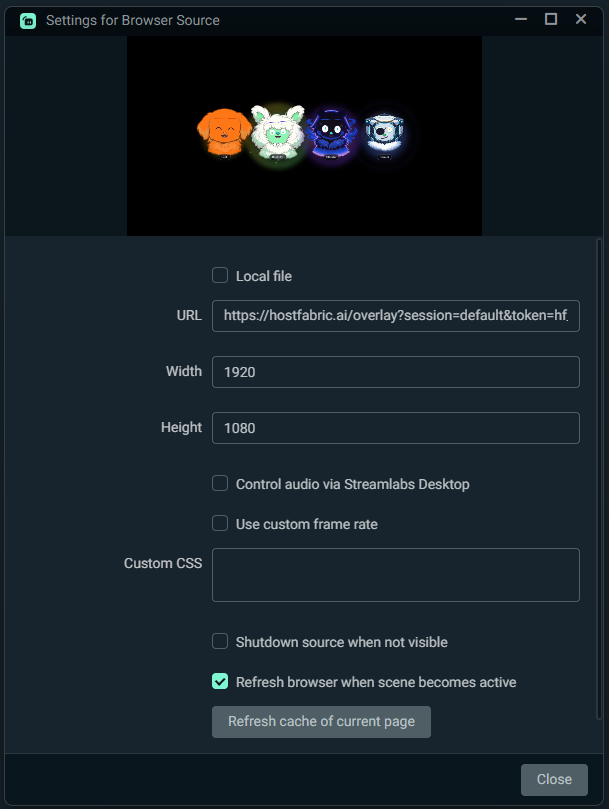
First, verify you have active agents selected in the control panel. Then check your quota hasn't been exceeded (for Platform users) or that your API keys are valid (for BYOK users). Finally, check the queue status in Live Flow.
The Emergency Stop button in the Control Panel immediately halts all AI activity: stops current audio playback, clears the message queue, mutes AI listening, and pauses room processing. Use it during live streaming emergencies when you need the AI to stop responding immediately. It's designed for critical situations like technical issues, inappropriate content, or when you need complete silence.
Make sure you've copied the full overlay URL with token. Refresh the browser source cache in OBS (right-click → Refresh). Verify the token hasn't been revoked in your overlay settings.
Check that your platform integration shows "Connected" status. Verify chat commands are enabled (like !ask, !askall, !askgpt, !askclaude, etc.). Make sure your bot account has chat permissions. See AGENTS.md for the complete command reference.
Check the browser source audio isn't muted and test TTS in the control panel first. If audio is garbled when OBS/Streamlabs is minimized, uncheck "Control audio via OBS" on the browser source. If you need OBS mixer control, enable it and keep the app visible or route audio through a virtual cable.
Streaming TTS starts playing audio almost immediately (300-600ms) as it's being generated, creating more natural conversation flow. Traditional TTS waits for the complete audio file to download before playing (2-4 seconds). HostFabric automatically uses streaming TTS with ElevenLabs and falls back to traditional TTS for other providers. You'll get the best experience with ElevenLabs for live conversations.
Production proof points
We run these FAQs through the same playbooks that power onboarding and live support, so everything here holds up when you’re under showtime pressure.
These responses mirror our internal runbooks so you get the same guidance our support desk delivers.
We sync this FAQ with the latest Control, billing, and policy changes every Friday.
If something isn’t covered here, the support CTA routes directly to the on-call production specialist.
Our support team typically responds within 12 minutes. We're here to help you succeed.